Create an order for a customer
Phone orders, counter sales and custom quotes, made by you in the dashboard.
1 min readUpdated View as Markdown
Use a draft order when a customer orders by phone, email or in person, or when you are preparing a custom quote. Nothing is placed until you create it.
Open Orders → All orders and click Draft Order. The Draft Order screen opens.
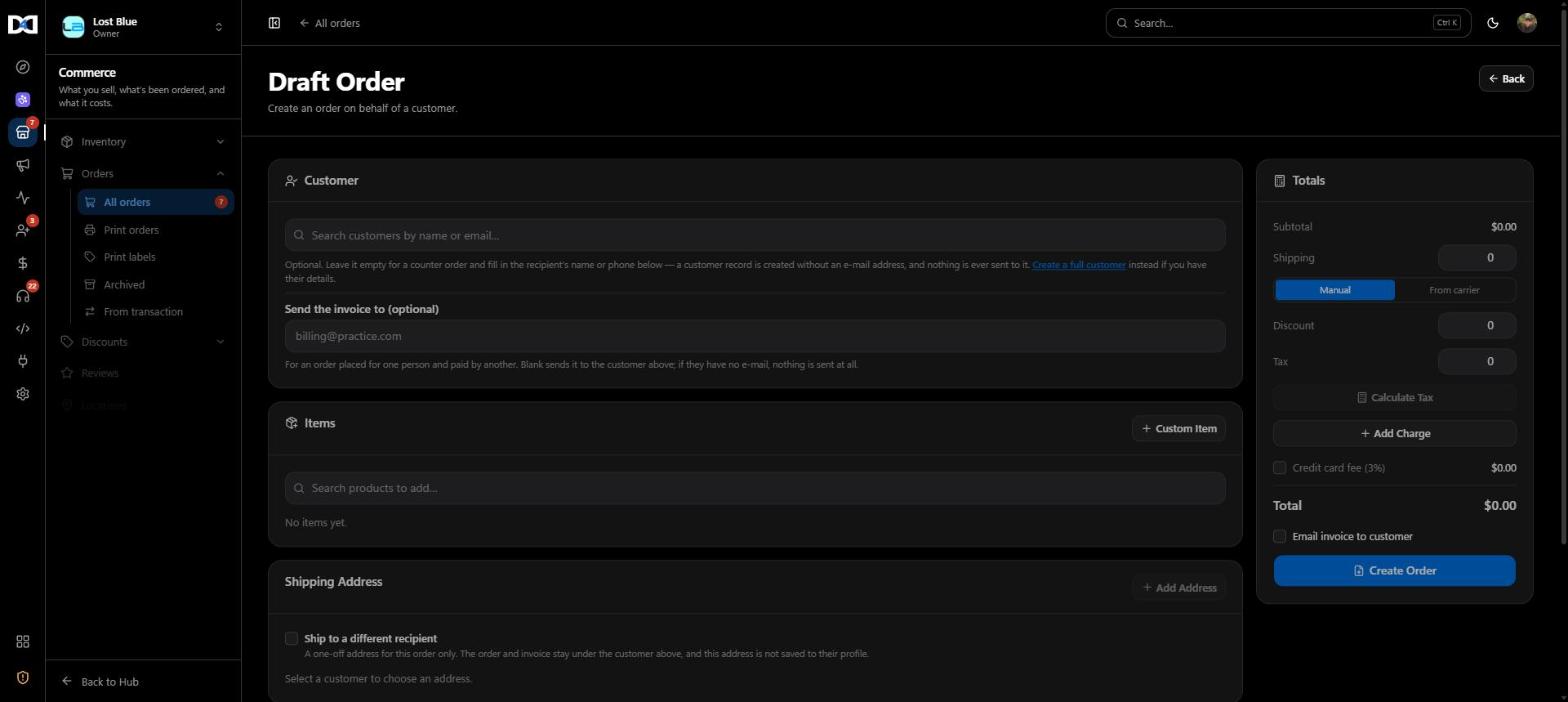
Choose the customer. Search by name or email. The customer is optional: for a counter sale, leave it empty and fill in the recipient's name or phone; a customer record is created without an email, and nothing is ever sent to it.
Send the invoice elsewhere (optional): when one person orders and another pays, type the payer's email under Send the invoice to.
Add items. Search products to add them, or use Custom Item for something that is not in your catalog.
Add the shipping address. Pick one of the customer's addresses, or tick Ship to a different recipient for a one-off address that is not saved to their profile.
Check the totals. In the Totals panel set shipping by hand or From carrier, add a discount, press Calculate Tax, and use Add Charge for anything extra. Tick Credit card fee to pass the card fee on.
Create the order. Tick Email invoice to customer if you want it sent, then press Create Order. It appears in All orders like any other.
Duplicate an earlier order
On any order, choose Duplicate. You get a Draft Order with the same items and address, ready to change and create. Handy for repeat customers.
Keep reading
Something wrong or missing on this page? Email support@dashfordevs.com.